Step-by-step for members, teams, and administrators. Button names match the console.
Members
Your vault, files, and shares. Cylo never sees names or file bodies — encryption runs in this browser.
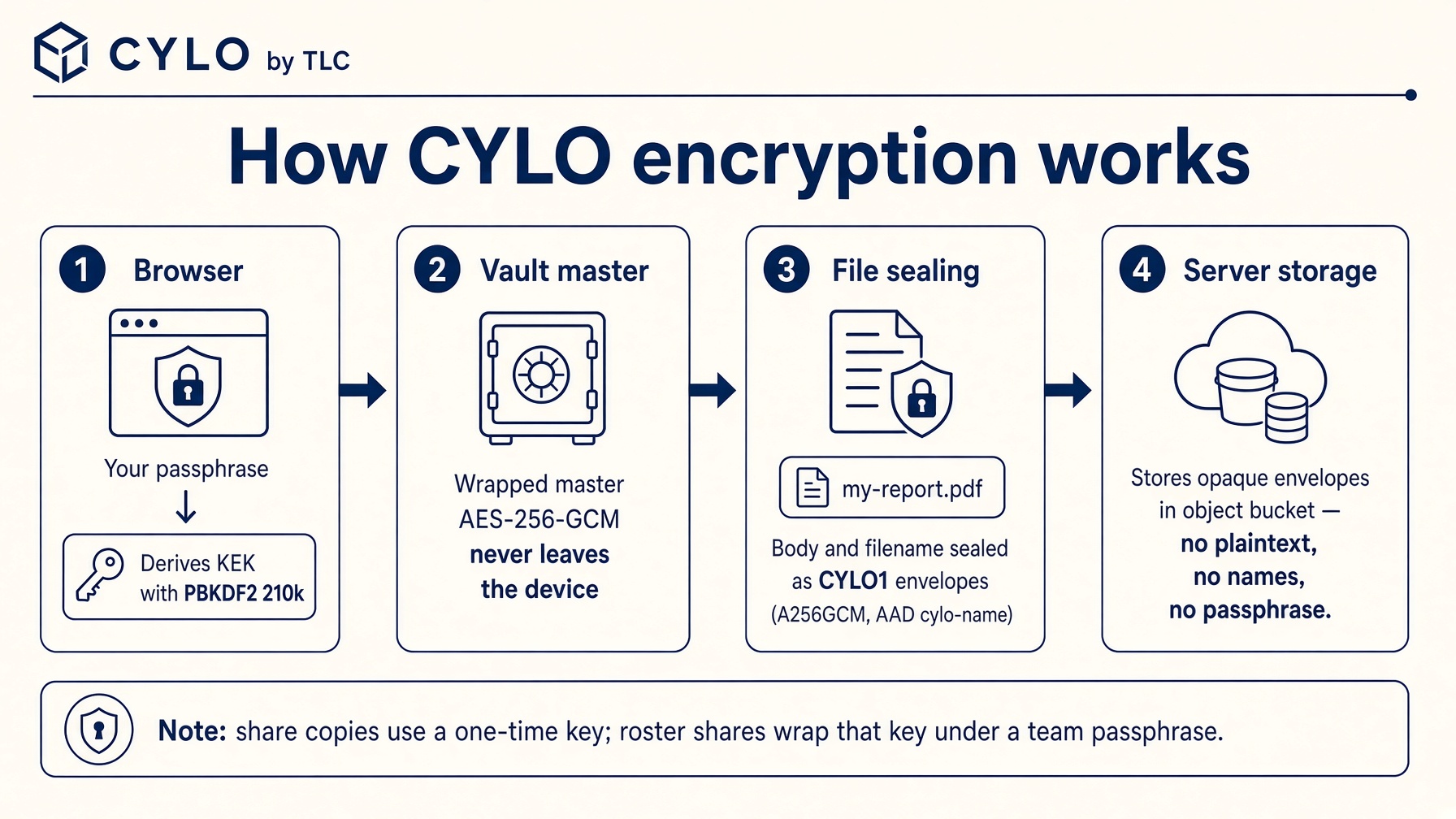
How encryption works
CYLO is a sealed vault. The hosting layer stores ciphertext. Nobody at TLC, and no admin on the roster, can unwrap your files.
You choose a vault passphrase (10+ characters). This browser runs PBKDF2-SHA-256 at 210,000 iterations to derive a key-encryption key. The passphrase never leaves the device.
A random vault master is generated and wrapped under that KEK. Only the wrap is stored. Unlocking unwraps the master into this tab; Lock and closing the tab clear it.
Each file is sealed with AES-256-GCM as a CYLO1 envelope. The filename is a second envelope (AAD cylo-name).
Cylo stores those envelopes in an object bucket. Sharing re-seals an independent copy with a one-time key — your vault master is never in the link.
How CYLO encryption works — passphrase, wrapped master, CYLO1 envelopes, opaque store
There is no admin unlock and no passphrase reset. If you forget the passphrase, destroy the vault and start again — the old envelopes stay sealed forever.
Join with an invite
You cannot create an account on an already-configured workspace without a token — unless the owner opened signup.
Open the invite link you were sent (it starts with cyloinv_), or go to Sign up and paste the token.
Create an account with the email the invite was bound to, if it was bound. Open invites accept any address.
Press Accept. You are now on the roster as operator or admin.
You still have to create your own vault passphrase next. The invite is not a key to anyone else’s files.
Join without an invite
If the owner turned on Open signup or Signup, then approve, the splash offers Create account.
Create the account. Open signup puts you on the roster as operator immediately.
Approval mode leaves you on a waiting screen until an admin or operator presses Approve on Team or Accounts.
Found the first workspace
Only when Cylo has never been configured. The first signed-in account becomes owner.
Open Cylo. You land on Initial setup.
Sign in or create the owner account.
Name the workspace and continue.
Create a vault passphrase (see below).
Optionally issue the first teammate invite, or skip and do it later from Team.
Create a vault passphrase
This is the only secret that can unwrap your files. Cylo cannot reset it.
After you join (or during setup) you see Create vault.
Type a passphrase of at least 10 characters. Type it again to confirm.
Write it down offline. Do not store it next to the files.
Submit. This browser derives a key, generates a vault master, and wraps that master. Only the wrap is stored.
If you forget the passphrase, every envelope for this account stays sealed forever. Destroying the vault deletes the envelopes; it does not recover them.
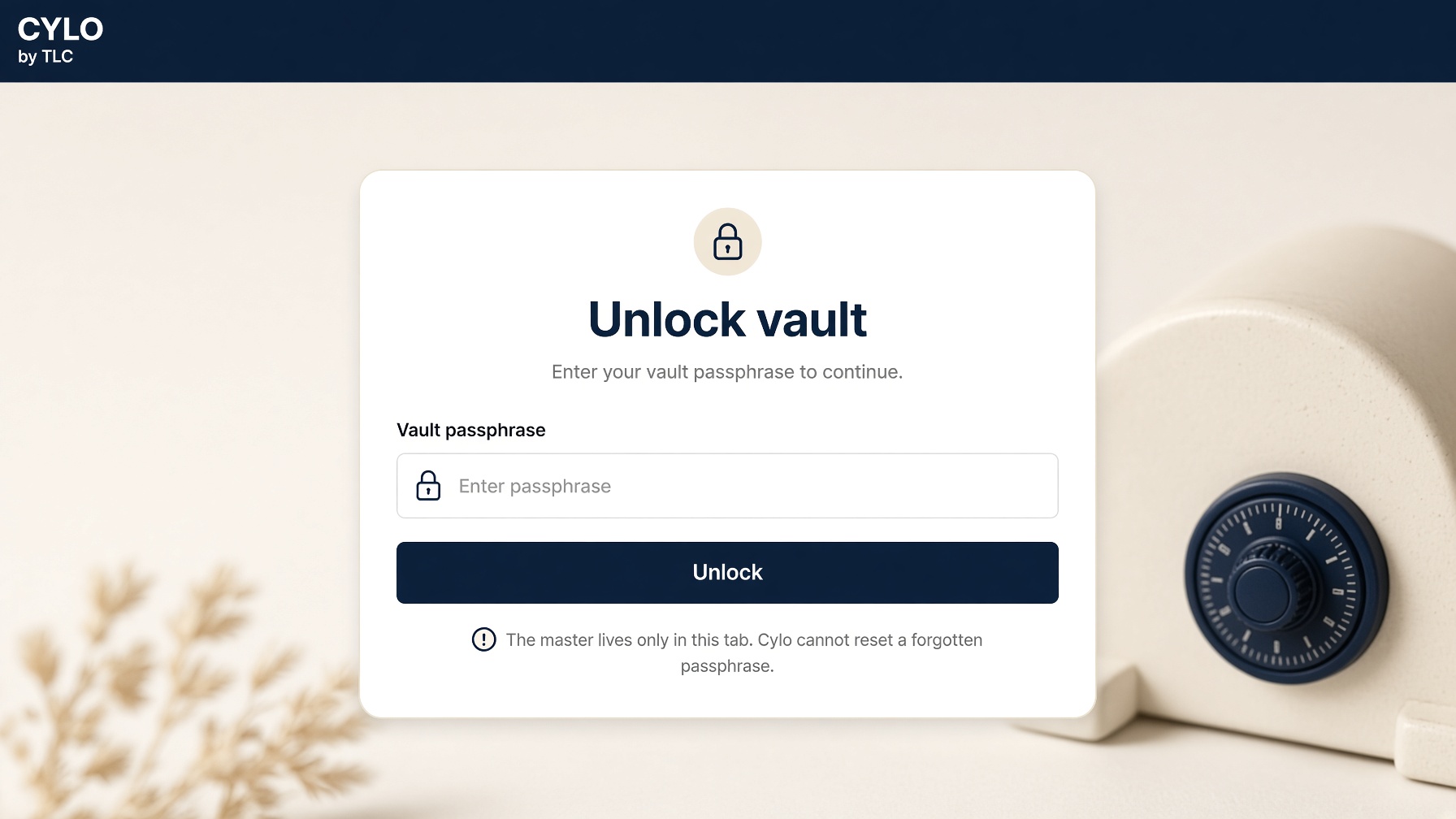
Press Unlock. A toast confirms. The master lives only in this tab.
Unlock vault — enter your passphrase in this browser
Lock the vault
Open Manager and press Lock now, or use Lock vault on Account.
The master is cleared from memory. Envelopes on the server stay sealed.
Closing the tab also drops the session master. Unlock again next time.
Seal files from disk
Encryption always runs before upload. A 50 GB log is one vault object, stored as 8 MB sealed chunks.
Unlock Vault.
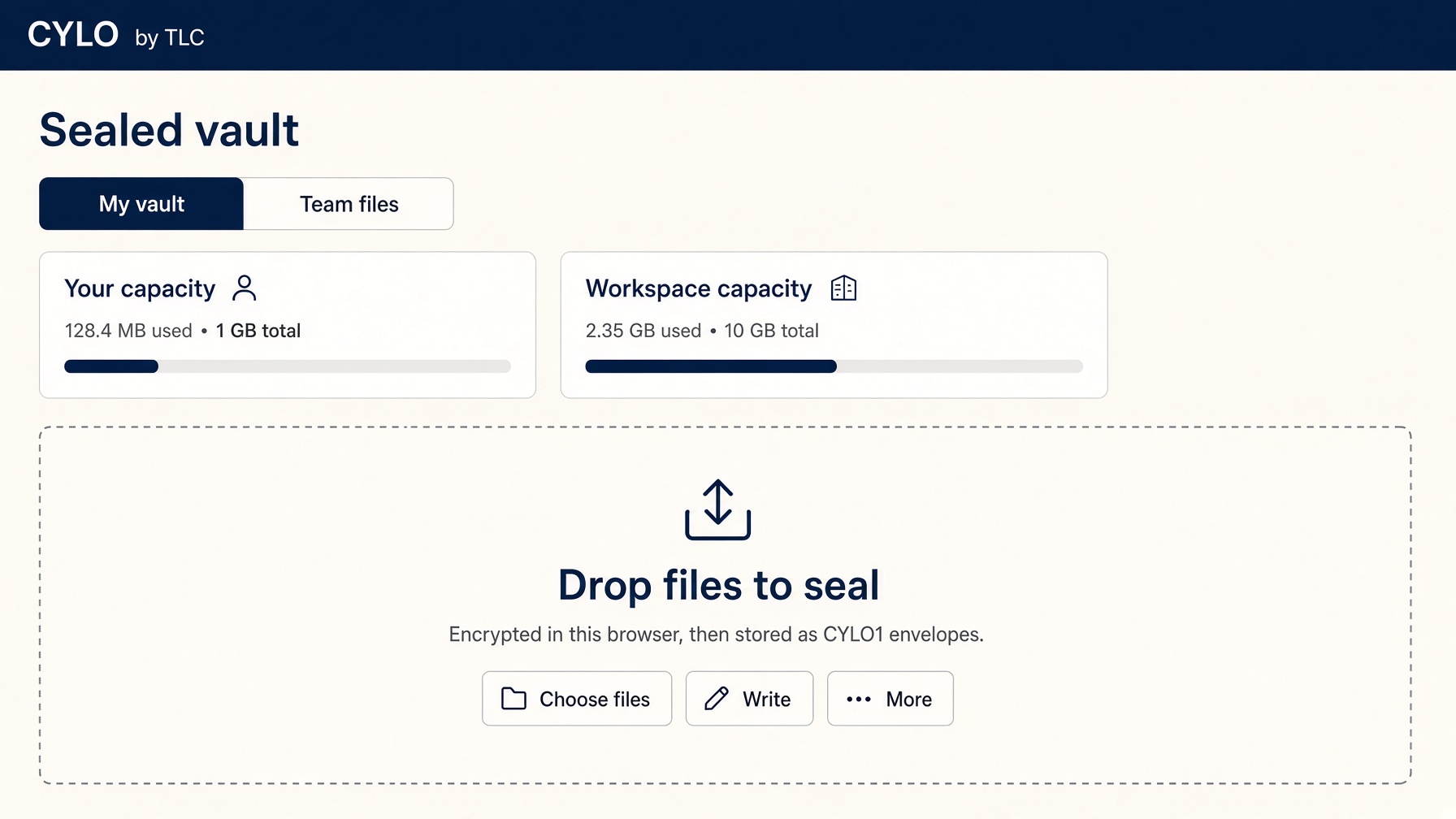
Press Choose files and pick one or more, or drop them on the dashed pane.
Watch the progress bar. When it finishes, the files appear in the current folder.
Kind badges (image, log, pdf…) are only hints for preview. They are not the filename.
My vault — drop files or choose them; they are sealed before upload
If a file is larger than the workspace file max, the upload is refused. Ask an owner or admin to raise Max per file (including Unlimited) on Admin → Overview or Team.
Write a note
On Vault press Write.
Set File name. Choose Markdown (headings, lists) or Plain text.
Type the body. Press Seal note.
The note is encrypted and stored in the folder you are in.
Create a folder
On Vault press More → New folder.
Type a name (for example Contracts) and press Create.
You are placed inside that folder. The breadcrumb at the top lets you go back up.
Folders are path prefixes, not a separate table. Nested depth max 6. Names with .. are rejected.
View or download a file
Unlock Vault and find the file. Use the search field to filter by name, type, or source.
Press the eye control to preview images, PDFs, text, and a few office types. Preview decrypts in this browser only.
Press the download control to save the original bytes with the original content type.
HTML and SVG download as generic binaries on purpose, so they cannot run as pages.
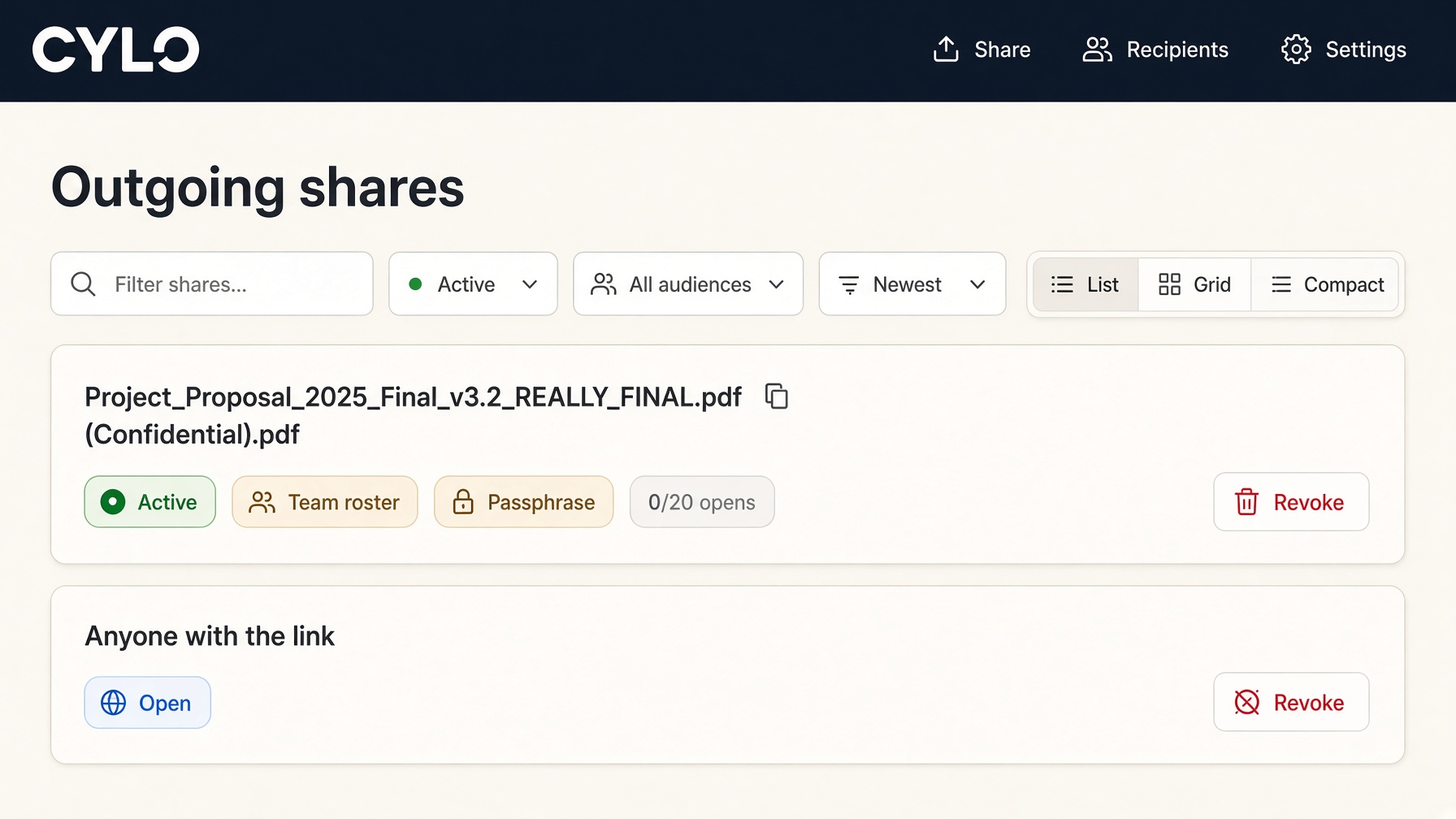
List, grid, compact, sort, and filter
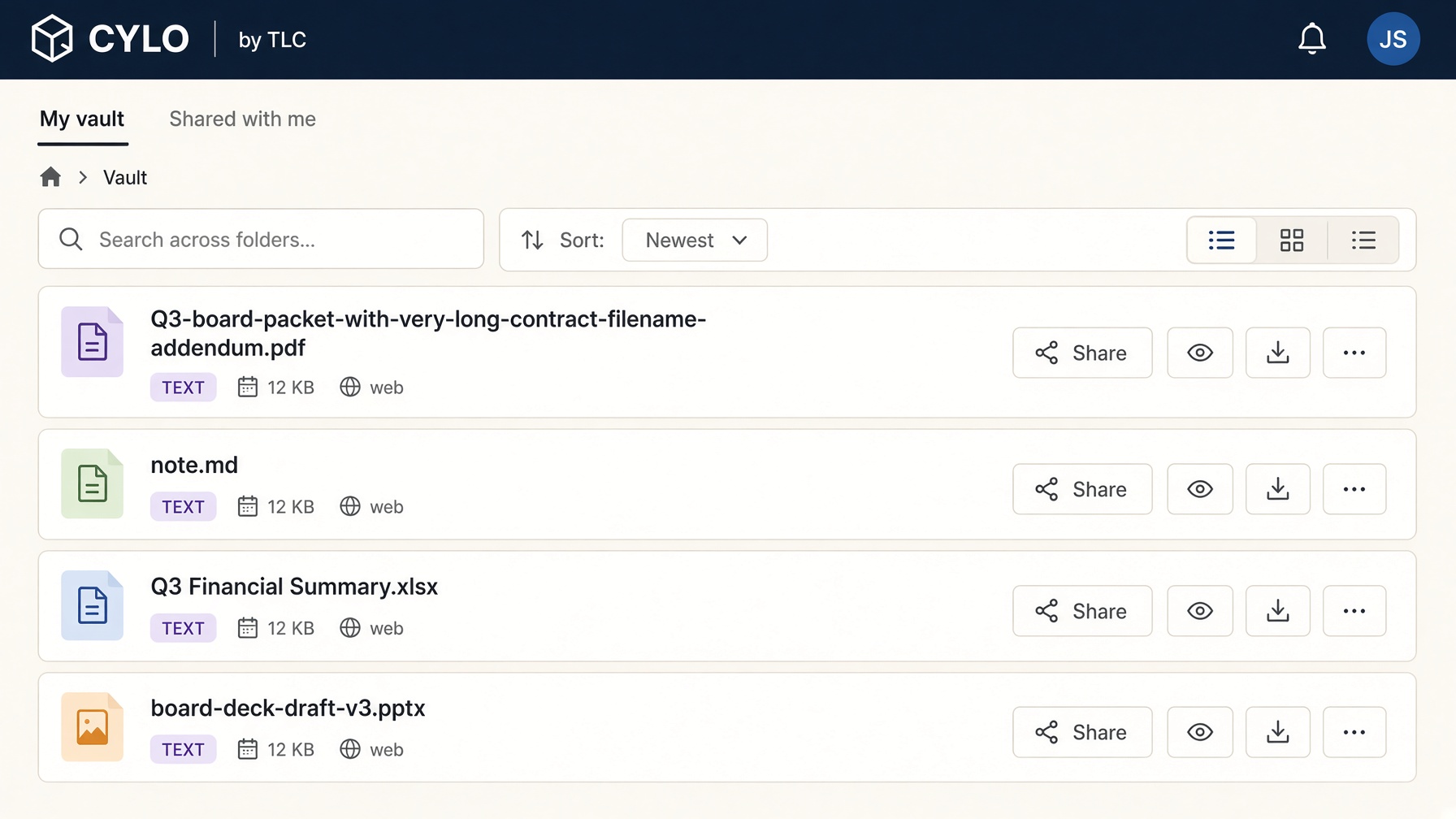
Long names wrap onto two lines so the page width stays put. Hover a name for the full string.
On Vault, Team files, and share lists, use the view toggles: list, grid, or compact.
Sort by newest, oldest, name, size, or type. Share lists also sort by opens left and expiry.
Share lists filter by status (active, expired, exhausted, revoked) and audience (link, named email, team roster).
Vault file list — long names wrap; search, sort, and view toggles stay on one row
Copy, move, archive, or delete
On a file or folder, open the ⋯ menu.
Copy duplicates the sealed object into a destination folder. This counts against quota.
Move renames the sealed path. Bytes stay put — no extra quota.
Archive zip decrypts the current selection in the browser and downloads a zip. Treat that zip as plaintext.
Delete removes the envelope (and its chunks). There is no recycle bin.
Share a file
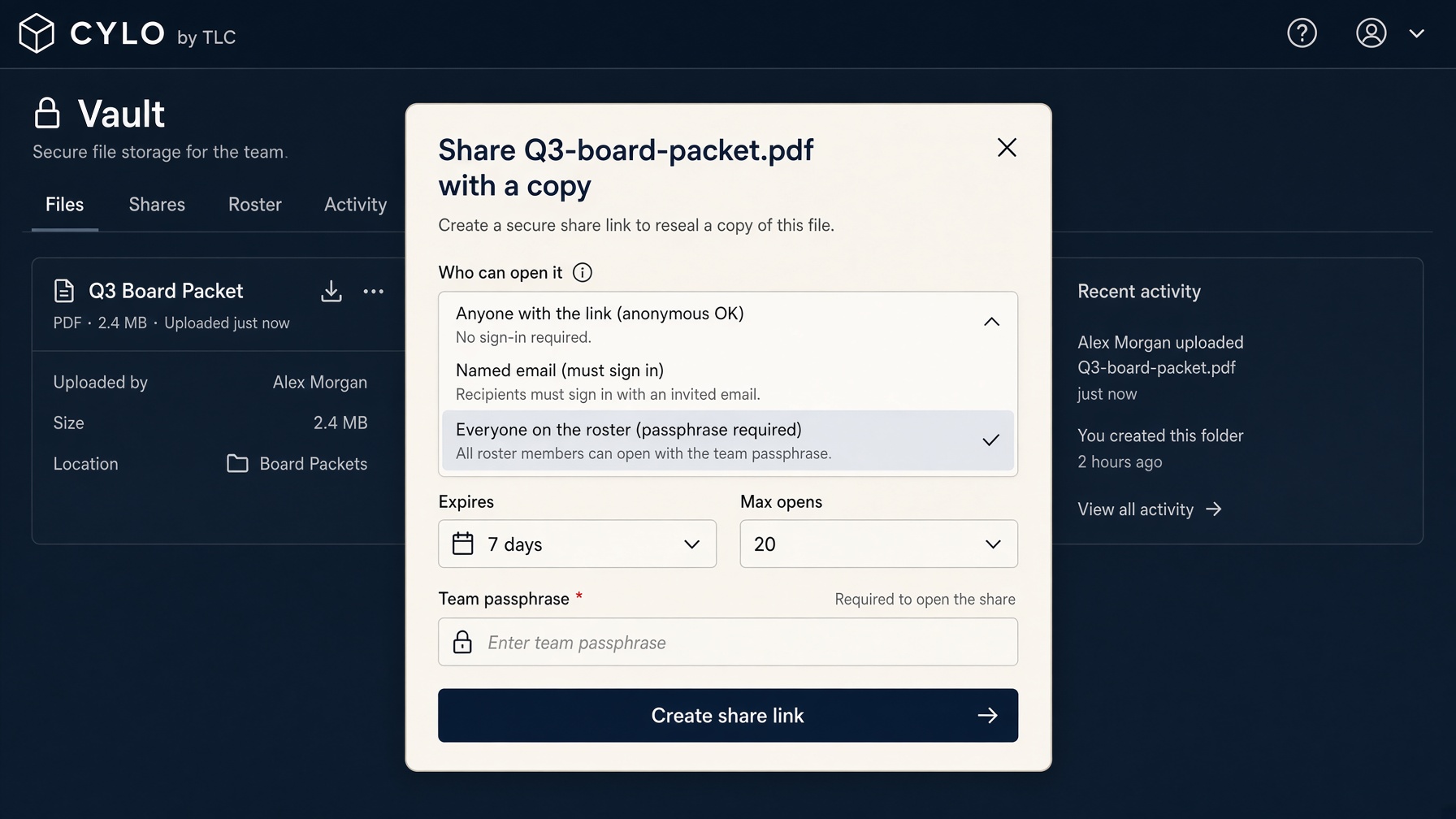
Use this for people outside your team, or for an anonymous / email link. Teammates already open new vault files after they unlock — no extra password.
Unlock Vault. On the file press Share.
Who can open it: Anyone with the link (no account), Named email (they must sign in as that address), or Passphrase copy for the roster (optional extra copy; teammates enter that passphrase on Team files).
Set Expires (1 / 7 / 30 days) and max opens (No limit, or 1 / 5 / 20 / 100).
Passphrase is optional for link and email — use it if chat apps strip the # fragment. Roster copies always require a passphrase. Send that on a second channel.
Press Create share link. For link and email, copy the full URL. The fragment after # is the unwrap key and is not stored by Cylo.
Press Open to check a link share, then Done.
Share dialog — link, named email, or everyone on the roster
Files stored as chunks (larger than 8 MB) cannot be shared by link. Download them from the vault instead.
Share a folder
On the folder card press Share. Empty folders cannot be shared — add a file first.
The same dialog as a file share. Cylo packs the folder, reseals that pack with a one-time share key, and issues a link.
The recipient browses files on the share page. This is a snapshot, not live access to your vault.
Open a share you received
Open the full URL you were sent.
If the link is bound to an email, sign in as that address first.
If the # fragment is missing, enter the share passphrase the sender gave you.
Preview or download. Each open counts against the share’s open limit unless you chose No limit.
Press Revoke on the live row. Cylo stops serving that envelope.
Already-downloaded copies are not pulled back. If this browser created the link, Open still works until you revoke.
Outgoing shares — filter by status and audience, switch list / grid / compact
Download the whole vault
On Vault press More → Download vault.
Choose Encrypted pack to keep envelopes sealed. Set a pack passphrase (10+ characters, twice) and press Download encrypted. Opening it later needs that passphrase.
Or choose Decrypted pack and press Download decrypted. Files inside are in the clear — do not send that file.
Open a vault file
On Vault press More → Open vault file.
Pick a .cylo (or zip) pack.
A decrypted pack imports straight in. A sealed pack asks for Pack passphrase, then Unlock.
Imported files are re-sealed into your vault and count against quota.
Switch light and dark
Use the sun/moon control in the header, or the same control on Account.
The choice stays in this browser only. It is not a workspace setting.
Destroy this vault
Deletes envelopes, keys, shares, and the wrapped master for your account. The roster is unchanged.
Open Manager → Destroy vault, or the same control on Account.
Type DESTROY and confirm.
This cannot be undone. Teammates keep their own vaults.
Teams
Each person keeps a vault. Teams wrap new files so teammates can open them after they unlock — no extra password. Owners and admins invite by email.
Roles
Role
Vault
Invite
Console
Owner
Own only
Admins and operators
Yes — quotas, inventory, health
Admin
Own only
Operators
Yes — cannot decrypt others
Operator
Own only
No
No
Invite a teammate
Owner can invite admins or operators. Admin can invite operators. Team admins can add people to a team by email.
Open Team. Under Teams, pick a team (every workspace has a default team) or create another.
Enter their email and press Invite. If they already have an account they are added immediately. Otherwise a workspace invite is issued together with team access.
Copy the full invite link for people who do not have an account yet. Existing accounts are added immediately and receive team files after they unlock — no extra password. If outbound mail is configured, CYLO emails new-user invites.
Workspace-only invites (no team wrap) still live under Issue an invite on Team or Admin → Accounts. Those admit the roster. After they unlock, a teammate who already has access grants team files automatically.
What the teammate does
They open the invite URL, sign up or sign in, then press Accept.
They create their own vault passphrase. Unlock the vault — team files then open with no extra password.
New files they seal appear in teammates’ My vault lists, with a badge. They can place those files into their own folders without moving the owner’s copy.
If invite approval is on, Accept queues them. Open Team or Accounts → Access requests and press Approve.
See what teammates uploaded
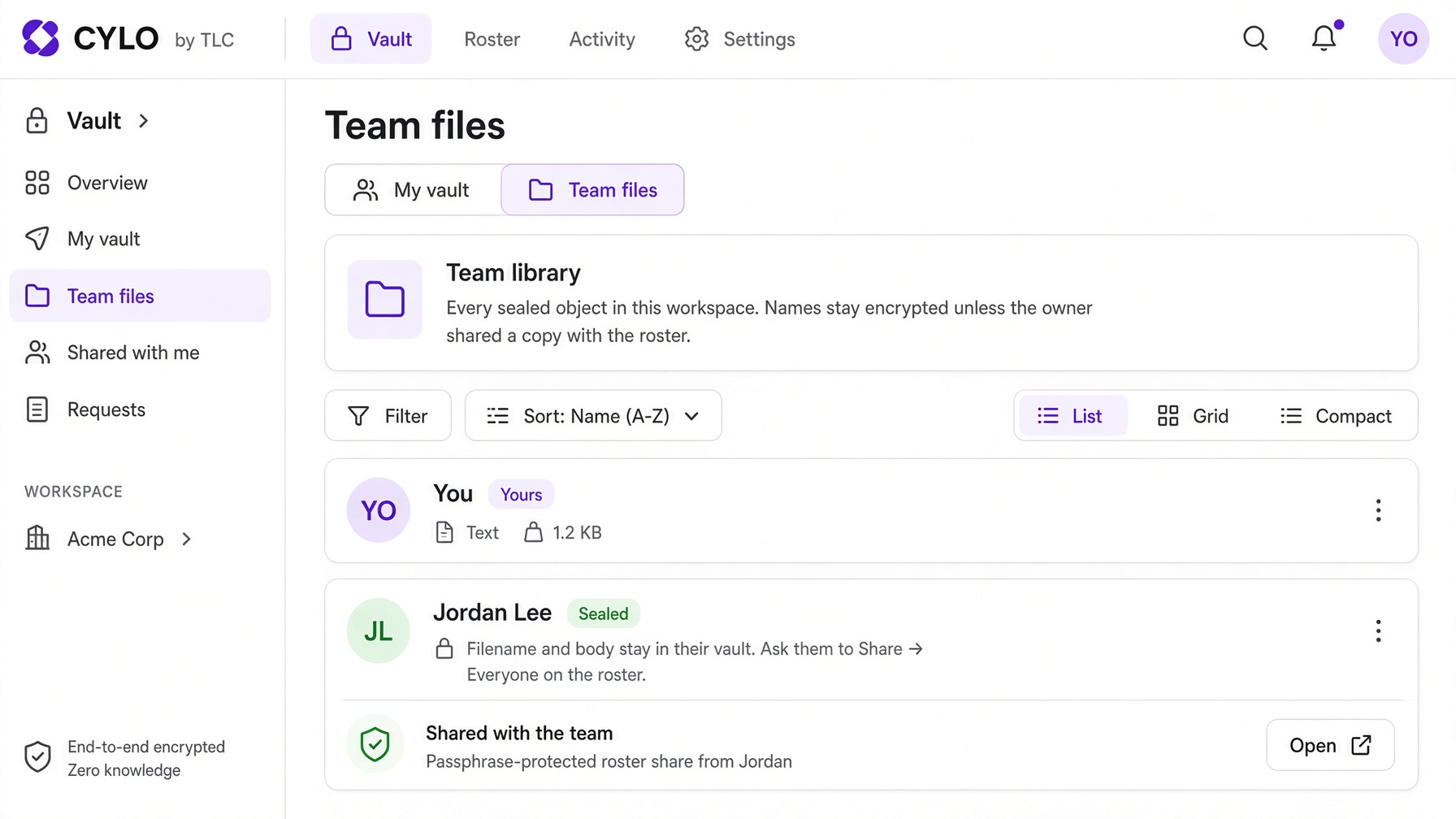
Team-wrapped files appear in My vault and under Shared with you. Unlock once. No extra password.
Unlock Vault. Files from teammates show a badge with their name or the team.
Open or download them like your own. Use Place in folder to sort a share into your folder tree, or Copy to my vault for a private resealed copy.
Anonymous links and named-email shares still work from Share. Optional roster-passphrase copies remain under the Team files tab.
Team files — workspace library plus copies shared with the roster
Approve a signup
Open Team (operators) or Admin → Accounts (owners and admins).
Under Access requests, press Approve or Deny.
Denied people stay signed in. They can request again if the workspace is still in approval mode.
Change a role or remove someone
Owner/admin: open Admin → Accounts (or Team).
Find the person (search matches name or email).
Change Role and save. You cannot demote the last owner.
Remove drops console access immediately. Their envelopes stay sealed until an admin deletes them from Inventory.
Set how much someone can store
On Admin → Accounts, each row has a personal quota control (number + B/KB/MB/GB/TB, or Unlimited).
Click a chip, or type an amount, pick a unit, and leave the field — it saves on blur.
Workspace quota and Max per file live on Admin → Overview and on Team (owners and admins).
0 / Unlimited means no cap. Objects larger than 8 MB are stored as sealed chunks either way.
Issue an ingest key for a shipper
Shippers POST already-sealed envelopes. The key never unwraps a vault.
Cluster timing applies on the next heartbeat. Safe while the store is running.
Defaults affect new invites, shares, and joining members only.
Envelope bucket and node name are owner-only. Tick the warning, save, then restart the core. Changing the bucket does not copy envelopes already written. Object-bucket keys stay in the process environment.
Listen address, database URL, and the core secret stay in the process environment. This page will not rotate the secret.
Who can join — Invite only (default), Signup then approve, or Open signup. Tick the warning if you leave invite-only. Invite approval makes accepted invites wait in the same queue.
Erase this instance and start over
Use this when first-run already ran once and you need a clean owner account plus workspace.
Sign in. On Setup, press Erase this instance and start over. Owners can also open Admin → Core → Erase this CYLO.
Leave Also delete owner and operator accounts checked so setup starts at step 1 again.
Type RESET THIS CYLO and press Erase this CYLO. There is no undo.
Reload Setup and create the owner account, then the workspace, then the vault.
Browse sealed inventory
Open Admin → Inventory. Each page is 25 envelopes. Names stay encrypted, so they are not searchable.
Filter by member, kind, or source, then Search. Next / Previous walks a keyset cursor — it will not dump millions of rows.
Remove deletes the envelope (and chunks) and returns the charged bytes to quota. You still cannot read the filename or body.
Revoke any live share
Open Admin → Shares.
Press Revoke on the row. The link stops serving. Downloads already taken are not pulled back.
Read the operator trail
Open Admin → Activity.
You see who uploaded, invited, revoked, or changed quota — not filenames, not plaintext, not share fragments.
Read cluster health
Live nodes is how many cores have heartbeaten recently, not a count of signed-in people.
Open Admin → Health. It refreshes every 15 seconds.
Live nodes shows live of known, plus whether envelopes sit in a local bucket, an object bucket, or in the database.
In flight is HTTP requests this moment. Bandwidth is lifetime in/out, rolled up by hour on the chart.
A row older than 90 seconds is stale. After a restart, the previous process name drops off within a few minutes.
Run a multi-user workspace on SQLite
Many members on one core is the normal case. SQLite with WAL serializes writes. Isolation still holds: no shared master, no admin decrypt.
Do not start a second core against the same SQLite file. Writers will lock or the file can corrupt.
To run more than one core: put metadata in Postgres, put envelopes in a shared bucket, and give each process a unique node name. Health then shows multiple live rows.
What administrators cannot do
Unlock or reset another member’s vault passphrase.
Search inventory by filename (names are sealed).
Read a share fragment after it is issued.
Recover files after Destroy vault or Inventory → Remove.